Home / Build it / Semantic Search Over PDFs and Documents
TutorialSemantic Search Over PDFs and Documents
Semantic search over PDFs and documents works by extracting the text of each file, splitting it into chunks, embedding each chunk and storing it with its source and page number. A query is embedded the same way, and the nearest chunks come back with a pointer to the exact page they came from. Most of the work sits before the vector database. PDFs store text as positioned characters rather than paragraphs, so extraction can scramble columns, tables and headers, and scanned files need OCR first. Chunk size and overlap decide what a single search hit contains. Page and file metadata make results traceable, filterable and easy to delete when a file changes. For pages where layout carries the meaning, such as tables and charts, visual retrieval models embed the page image directly. Hybrid search and grouping by document turn chunk hits into useful document results.
PDF and document search in four facts
- Document search embeds chunks of each file, not whole files, and stores the page number with each chunk.
- Weaviate’s RAG starter guide suggests a 100 to 200 word sliding window with a 50 word overlap as a baseline.
- ColPali-style models embed an image of each page, which skips OCR, layout detection and chunking.
- Weaviate’s multimodal document embeddings, added in version 1.35, run on Weaviate Cloud only.
How does semantic search over PDFs and documents work?
Semantic search over PDFs and documents works as a pipeline of five steps: extract, clean, chunk, embed and index. Each chunk becomes one searchable object that carries its text, its file name and its page. The query side only embeds the question and searches.
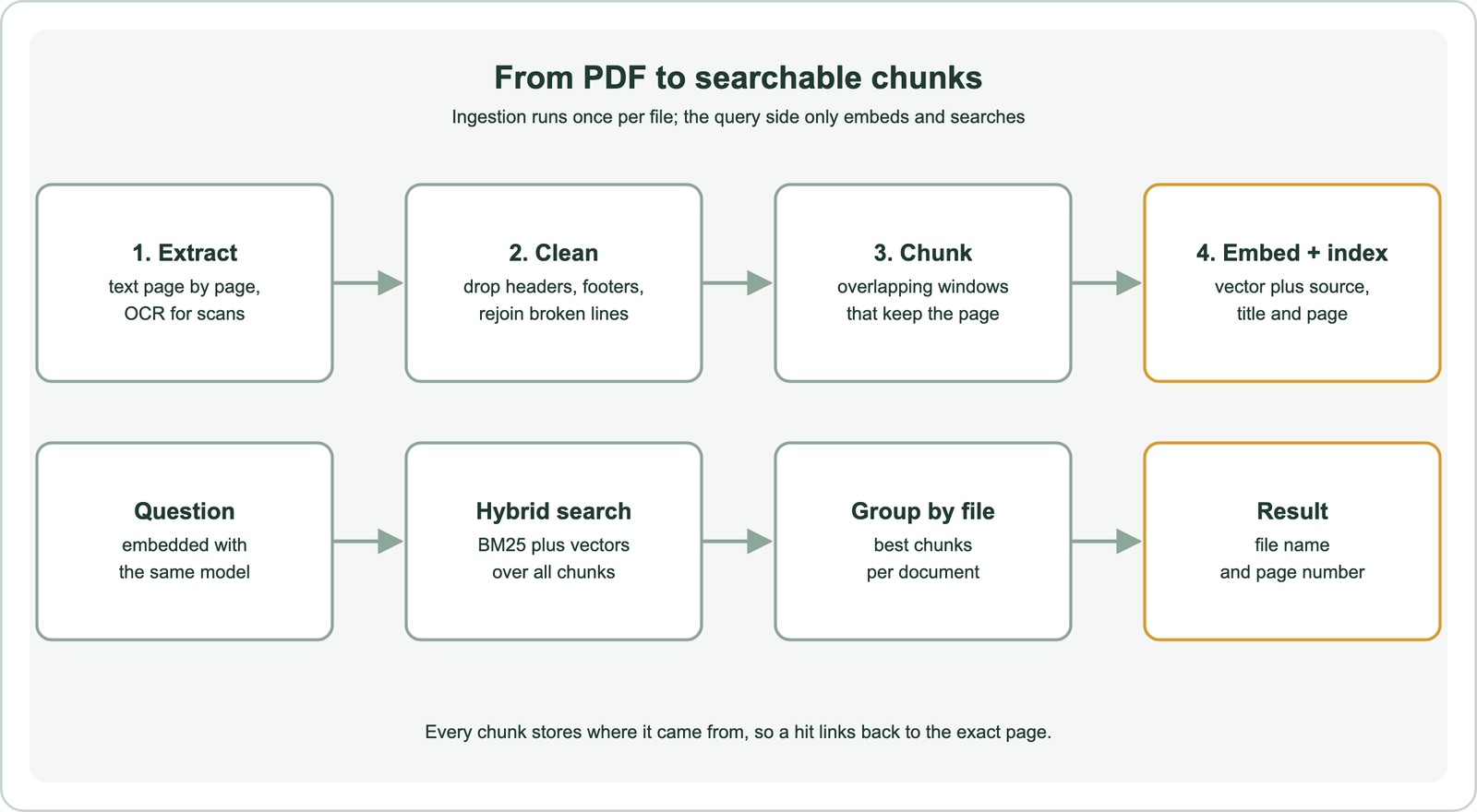
Extraction reads the text layer of each page. Cleaning removes repeated headers, footers and page numbers, and rejoins words broken across lines. Chunking cuts each page or section into passages short enough to embed and specific enough to answer a question. The embedding model turns every passage into a vector, and the database stores the vector with its metadata.
At query time the question is embedded with the same model. The database returns the nearest chunks, and the application shows each one with its file name and page. The general pipeline is described in how to build semantic search. What makes documents different is the first step, because PDFs were designed for printing rather than for reading back as text.
Why is extracting text from PDFs harder than it looks?
Extracting text from PDFs is harder than it looks because a PDF stores characters at positions on a page, not paragraphs in reading order. The extractor has to rebuild words, lines and reading order from those positions. It often gets parts of that wrong.
Several layouts cause trouble. Two-column pages can be read straight across, which interleaves sentences from both columns. Tables become runs of numbers with no column labels. Running headers and footers repeat on every page and pollute every chunk. Hyphenated words split at line ends, and footnotes land in the middle of paragraphs.
Scanned PDFs have no text layer at all, only images of pages. They need optical character recognition before any of this can start, and OCR errors then flow into every later step. A quick check is to extract one page and read it. If the text is empty, the file is a scan. If the sentences jump between topics, the column order is wrong.
Weaviate’s PDF retrieval recipe describes the traditional approach as OCR plus layout detection, with separate handling of text, tables, figures and charts, followed by chunking. Simple pages work well with a plain text extractor. Complex reports often need a layout-aware parser that outputs headings and tables as structure. Whatever the tool, the output should be clean text tagged with its page, ready for the next step.
How should you chunk PDFs and documents for semantic search?
You should chunk PDFs and documents into passages that match the size of a useful search hit, with a small overlap and the page number attached. Weaviate’s RAG starter guide suggests a 100 to 200 word sliding window with a 50 word overlap as one baseline.
The same guide describes two other routes. Chunking by semantic markers, such as paragraphs or sections, keeps related sentences together but produces uneven lengths. A mixed strategy uses paragraphs with a minimum and maximum size, for example 50 and 200 words. The trade-offs are covered in chunking for semantic search.
Documents add one rule: never lose the location. Each chunk should store the file name, the document title, the page number and its position in the document. That data lets the interface link straight to the page and lets a filter restrict a search to one file. It also lets an application fetch the neighbouring chunks when a hit needs more context.
Headings are worth keeping too. Prefixing each chunk with its document title, or its section heading, gives the embedding model context that a bare paragraph lacks. A chunk that says only “the limit is 14 days” is hard to match; the same chunk under “Refund policy” is not. With chunks defined, the next step is loading them into a database.
How do you index PDF chunks in Weaviate?
You index PDF chunks in Weaviate by creating a collection with text, source, title, page and chunk index properties, then adding one object per chunk with its vector. The code reads each PDF with the pypdf library and embeds chunks locally with sentence-transformers.
from pathlib import Path
from pypdf import PdfReader
import weaviate
from weaviate.classes.config import Configure, Property, DataType
from sentence_transformers import SentenceTransformer

def pdf_pages(path):
    reader = PdfReader(path)
    for number, page in enumerate(reader.pages, start=1):
        text = page.extract_text() or ""
        if text.strip():
            yield number, text

def chunk_words(text, size=150, overlap=25):
    words = text.split()
    for start in range(0, len(words), size):
        yield " ".join(words[max(start - overlap, 0): start + size])

model = SentenceTransformer("all-MiniLM-L6-v2")
client = weaviate.connect_to_local()

chunks = client.collections.create(
    name="DocChunk",
    vector_config=Configure.Vectors.self_provided(),
    properties=[
        Property(name="text", data_type=DataType.TEXT),
        Property(name="source", data_type=DataType.TEXT),
        Property(name="title", data_type=DataType.TEXT),
        Property(name="page", data_type=DataType.INT),
        Property(name="chunk_index", data_type=DataType.INT),
    ],
)

with chunks.batch.fixed_size(batch_size=100) as batch:
    for path in Path("docs").glob("*.pdf"):
        title = path.stem.replace("-", " ")
        i = 0
        for page, text in pdf_pages(path):
            for piece in chunk_words(text):
                vector = model.encode(title + ". " + piece, normalize_embeddings=True)
                batch.add_object(
                    properties={"text": piece, "source": path.name, "title": title,
                                "page": page, "chunk_index": i},
                    vector=vector.tolist(),
                )
                i += 1
print(len(chunks.batch.failed_objects), "failed")
The chunker works within each page, so every chunk has exactly one page number. The 150 word size and 25 word overlap match the values in Weaviate’s RAG starter guide example. The title is prepended before embedding but stored separately, so the displayed text stays clean.
A vectorizer module can replace the local model, so that Weaviate embeds chunks on import. The client setup and collection options are explained in semantic search with Weaviate, and the same pipeline in a plain script is in semantic search with Python. Property choices for larger systems are in search index schema design. Indexed chunks still need the right query to turn them into document results.
How do you query document chunks and return whole documents?
You query document chunks with a hybrid search, then group the hits by source file so each document appears once with its best pages. Hybrid search matters for documents because they are full of exact terms: product codes, clause numbers and names.
from weaviate.classes.query import Filter, GroupBy, MetadataQuery

query = "how long do refunds take"
qvec = model.encode(query, normalize_embeddings=True).tolist()

response = chunks.query.hybrid(
    query=query, vector=qvec, alpha=0.5, limit=5,
    return_metadata=MetadataQuery(score=True),
)
for o in response.objects:
    print(o.properties["source"], "page", o.properties["page"], o.properties["text"][:80])

grouped = chunks.query.near_vector(
    near_vector=qvec,
    group_by=GroupBy(prop="source", number_of_groups=3, objects_per_group=2),
)
for name, group in grouped.groups.items():
    print(name, [o.properties["page"] for o in group.objects])

one_file = chunks.query.near_vector(
    near_vector=qvec, limit=3,
    filters=Filter.by_property("source").equal("refund-policy.pdf"),
)
The hybrid query blends BM25 keyword scores with vector similarity, with alpha setting the balance. The grouped query returns up to three files, each with its two closest chunks, which suits a results page that lists documents. The filtered query searches inside one file, which suits a document viewer.
Without grouping, one long manual can fill every result slot with near-identical chunks. Grouping or a per-document cap fixes that. The fusion of keyword and vector scores is explained in hybrid search. Some pages, however, carry their meaning in layout rather than in text, and no text query can fix a broken extraction.
How do you search tables, charts and scanned pages in PDFs?
You search tables, charts and scanned pages by embedding an image of each page with a visual document retrieval model, instead of extracting text. Models such as ColPali and ColQwen2 read the page as a picture and produce multi-vector embeddings that text queries can match.
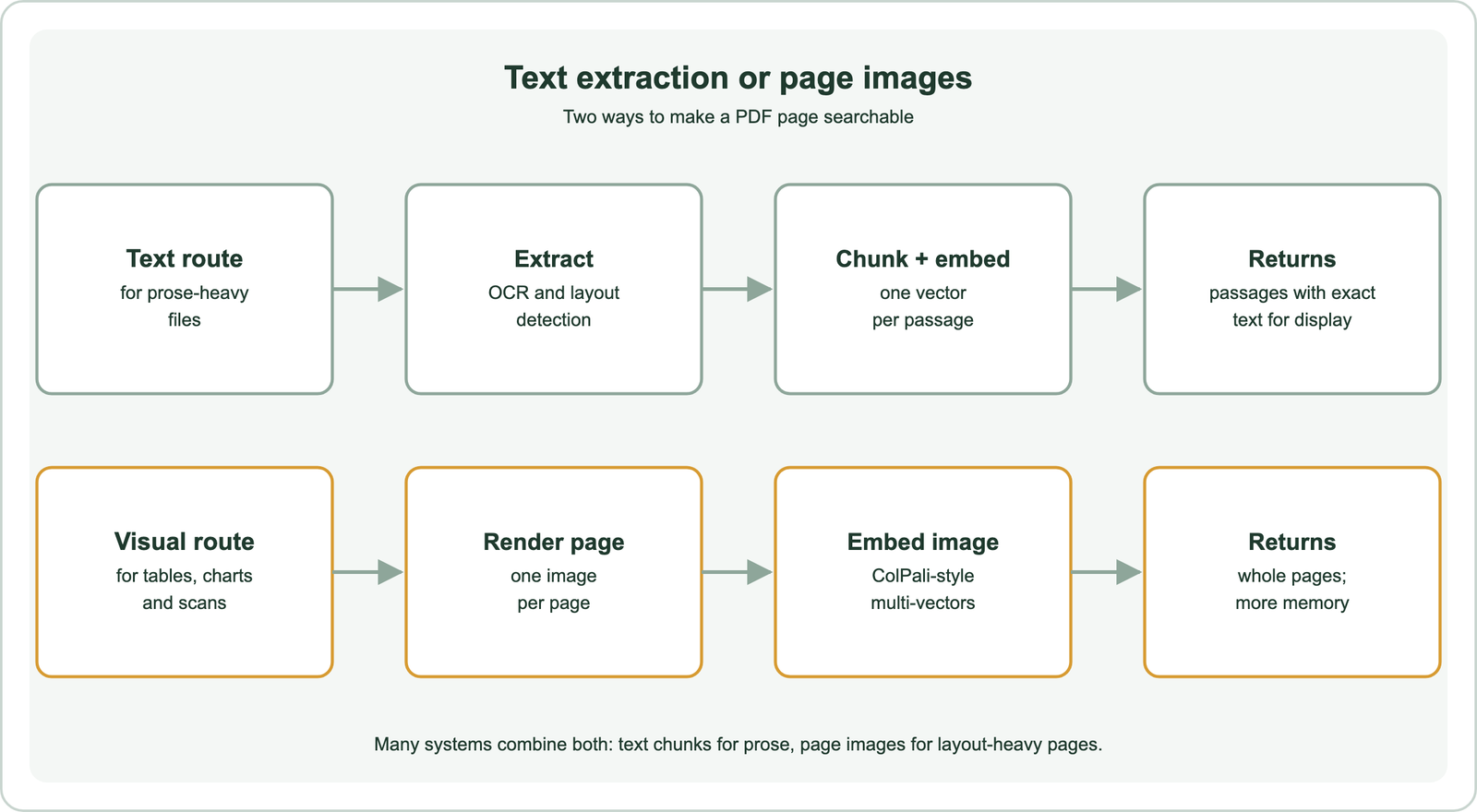
Weaviate’s recipe for multimodal RAG over PDFs uses ColQwen2 to embed each page image and stores the result as a multi-vector, which requires Weaviate 1.29 or later. Queries are matched with MaxSim late interaction. The recipe notes that this approach replaces OCR, layout detection and chunking with a single model applied to page screenshots.
Weaviate 1.35 added a managed option. Its multimodal Weaviate Embeddings integration embeds document page images with the ModernVBERT colmodernvbert model and is available on Weaviate Cloud only. The trade-off is memory, because multi-vector embeddings store many vectors per page, as Weaviate’s overview of late interaction models notes.
A common design uses both routes: text chunks for prose, and page images for pages dense with tables or figures. How late interaction works is covered in ColBERT and late interaction and multi-vector search. Office files raise a simpler question, because most of them already hold structured text.
How do Word, PowerPoint and HTML files fit the same pipeline?
Word, PowerPoint and HTML files fit the same pipeline after conversion to text, and they are usually easier than PDFs because they store paragraphs and headings explicitly. The converter can keep structure that a PDF extractor has to guess.
A Word file stores headings, lists and tables as elements, so each chunk can carry its section heading. A slide deck works well with one chunk per slide, including speaker notes, with the slide number playing the role of the page. HTML pages should be stripped of navigation and footers before chunking, so boilerplate does not match every query.
Mixed collections need one shared schema. Store a file type property alongside the source, title and location fields, and reuse the same chunker. That keeps results comparable and lets users filter by type. Frameworks such as LangChain and LlamaIndex ship loaders for many formats, as shown in semantic search with LangChain and LlamaIndex. Once files of every kind are indexed, the remaining work is keeping the index in step with them.
How do you keep a document index in sync when files change?
You keep a document index in sync by deleting every chunk from a changed file and re-ingesting the new version, using the source property as the key. Editing individual chunks rarely works, because one inserted paragraph shifts every chunk boundary after it.
In Weaviate, one call removes all chunks of a file, after which the new version is ingested with the same loop as before.
chunks.data.delete_many(where=Filter.by_property("source").equal("refund-policy.pdf"))Store a content hash or modified time with each file to detect changes cheaply. A nightly job can compare hashes, re-ingest changed files and delete chunks of removed ones.
Access control belongs in the same metadata. Internal documents often have readers limited by team or role. Store the allowed groups on each chunk and filter on them at query time, as described in permission-aware search. A model change is the other reason to rebuild, because old and new vectors cannot be compared. Moving an index between systems is covered in migrating to a new vector database. Sync keeps results current; the final step is checking that they are right.
Which database and settings work best for document search?
The database that works best for document search is one with hybrid search, metadata filters, grouping and batch deletes, because document search uses all four. Weaviate, Qdrant, Milvus, Pinecone, Elasticsearch, OpenSearch, Redis, Chroma and Postgres with pgvector all store chunk vectors with metadata.
The practical differences lie in hybrid search, grouping and operations. Each tutorial covers one engine: Weaviate, Qdrant, Milvus, Pinecone, Elasticsearch, OpenSearch, Redis, Chroma and Postgres with pgvector. The decision criteria are in choosing a vector database for semantic search.
Settings matter as much as the engine. Test two or three chunk sizes on real questions from your users, with known answer pages, and keep the size that puts the right page first most often. Check extraction on your hardest files, not your cleanest. A broader view of document search inside companies is in enterprise and internal document search.
Semantic search over PDFs and documents comes down to good ingestion. Extract text page by page, with OCR for scans, clean out headers and footers, and chunk into overlapping passages that keep their file and page. Embed and index each chunk with that metadata, then query with hybrid search and group hits by document. For tables, charts and scanned pages, visual retrieval models that embed page images avoid extraction errors at the cost of more memory. Re-ingest whole files when they change, filter by permissions, and test chunk sizes on real questions before trusting the results.